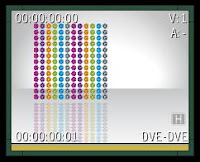
 Here, i got 12 bars that needed to animate according to the music.

First, i loaded it 12 times, and cropped each one up.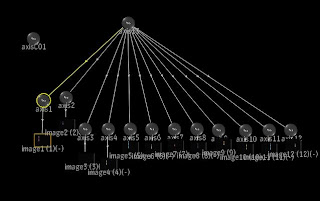 I hated to go around and searching for each media's crop to animate it. So, i created a new axis, and name it axisC01. I would used this axisC01 to control all medias' crop.
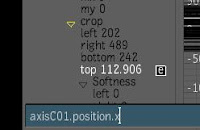 Media1 (1st left bar) crop top, enter expression : axisC01.position.x
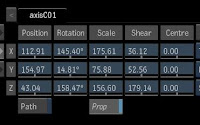 Then, i could use just axisC01 to control all my medias' crop. This was much easier to animate than taking the trouble to locate each media's crop.
  This way, each bar would have a bit of variation and random movement, but overall still followed the main bar's pattern. And if the music track change, i just need to animate back the 1st bar only.
I hated to go around and searching for each media's crop to animate it. So, i created a new axis, and name it axisC01. I would used this axisC01 to control all medias' crop.Media1 (1st left bar) crop top, enter expression : axisC01.position.xMedia2 (2nd left bar) crop top, enter expression : axisC01.position.y
Media3 crop top, enter expression : axisC01.position.z
Media4 crop top, enter expression : axisC01.rotation.x
Media5 crop top, enter expression : axisC01.rotation.y
Media3 crop top, enter expression : axisC01.position.z
Media4 crop top, enter expression : axisC01.rotation.x
Media5 crop top, enter expression : axisC01.rotation.y
....follow the above pattern until media12,
Media12 crop top, enter expression : axisC01.shearing.z
 Then, i could use just axisC01 to control all my medias' crop. This was much easier to animate than taking the trouble to locate each media's crop.
 I manually animated first bar's crop according to the music using axisC01 positionX.
I could do the same with other bar if i wanted to, just copy the animation value from positionX, then add a bit variation to each bar. But, i'm a lazy guy, so i let the expression do it.
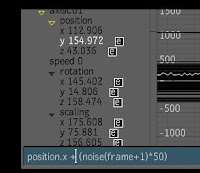
In axisC01.position.y enter expression :
position.x + (noise(frame+1)*50)
In axisC01.position.z enter expression :
position.x + (noise(frame+2)*110)
In axisC01.rotation.x enter expression :
position.x + (noise(frame+3)*150)
position.x + (noise(frame+3)*150)
....followed the same pattern until axisC01.shearing.z,
This way, each bar would have a bit of variation and random movement, but overall still followed the main bar's pattern. And if the music track change, i just need to animate back the 1st bar only.


 Ready a clip, a 10 frame clips with 0 to 9 at the center of screen. Repeat the clip (Video - Repeat - Clip ) few times so it loop. Load it as media 4 times. Arange them side by side.
 In media1, slip & matte slip enter expression :
  In media2, slip & matte slip enter expression :

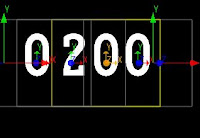
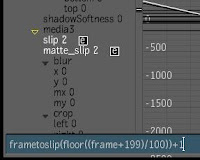 So, if you want 230, then in media2, expreesion :
 In the media slip and matte slip of each media, enter expression :
 Now, we add motion blur to it.

